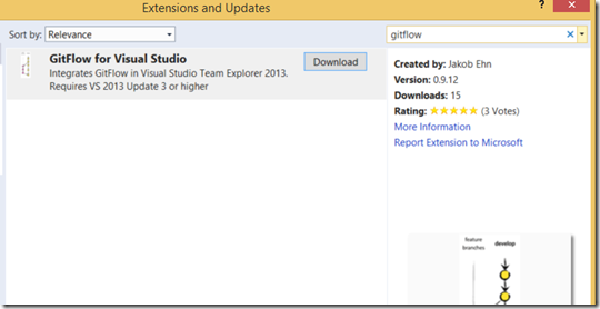
Update: The exension is now also available for Visual Studio 2015 Preview: https://visualstudiogallery.msdn.microsoft.com/f5ae0a1d-005f-4a09-a19c-3f46ff30400a
GitFlow is a popular workflow that provides a consistent naming convention to your branches as well as clear guidance on how your code should flow through these branches. GitFlow was introduced by Vincent Driessen in this post back in 2010, and quickly caught a lot of attention in the community. Since GitFlow by nature is very prescriptive it made a lot of sense to implement tooling support for the workflow, which Vincent added shortly after. His repo is available at https://github.com/nvie/gitflow, although it hasn’t been updated since 2012. However, several forks has been made, one of the most active is being developed by Peter van der Does at https://github.com/petervanderdoes/gitflow
In my previous post, I showed how you can trigger a release in Visual Studio Release Management from a TeamCity build step.
When Visual Studio Release Management 2013 RTM’ed, it came with customized TFS build templates that made it easy to trigger a release from a TFVC or Git build in TFS. These build templates relied on the ReleaseManagementBuild command line client, so it required the VSRM client being installed on the build server.
The last couple of years it has become apparent that using multiple team projects in TFS is generally a bad idea. There are of course exceptions to this, but there are a lot ot things that becomes much easier to do when you put all of your projects and team in the same team project.
Fellow ALM MVP Martin Hinshelwood has blogged about this several times, as well as other people in the community. In particular, using the backlog and portfolio management tools makes much more sense when everything is located in the same team project.
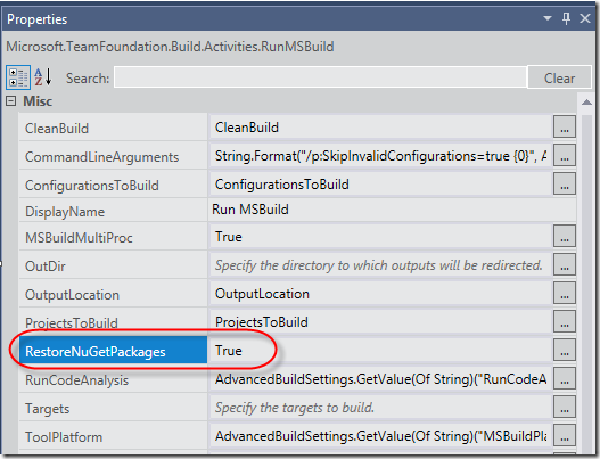
Problem # One of our customers recently had a problem with NuGet restore when they created a new build template, based on the standard TfvcTemplate.12.xaml template. In TFS 2013, package restore is done automatically by the default build templates.
It is configured as part of the RunMSBuild activity, where you can enable and disable this by setting the EnableNuGetPackageRestore property:
Almost four years ago I wrote a post on how to create a build definition programmatically using the TFS 2010 API. The code is partyl still valid, but since a lot of the information in a build definition is dependent on the build process template, the code in the blog does not work properly for the TFS 2013 default build templates. In addition, since the introduction of Git in TFS 2013, there are some other differences in how you create a build definition for a Git team project compared to a TFVC team project.
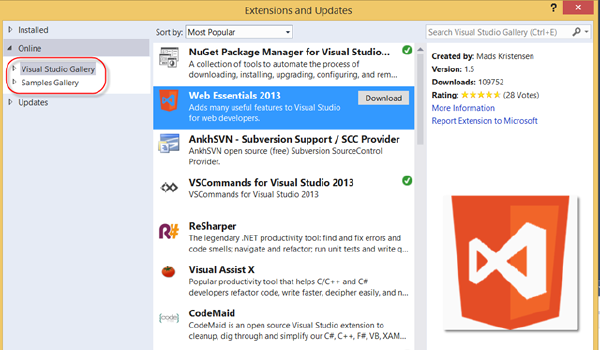
This year at the second MVP summit I presented a new solution for hosting a private extension gallery. Since then I have finished up the code and put it up on the CodePlex site so you can use it as you want to. In this blog post I will walk through the background and how you deploy and use the solution.
Note: The sourcecode is available at http://inmetavsgallery.codeplex.com/ as a new 2.0 release. I have branched the original source code so that it is still available.
Yesterday, on September 12th, we arranged a Visual Studio Community Day 2013 at Mesh in central Oslo. The agenda was in two parts, first we talked about how you can improve your delivery cadence by using Visual Studio ALM. We went through all stages including planning, developing, testing and deployment. In the second part, we showed some of the new goodies in Visual Studio 2013, where we focused mostly on Git and InRelease which are the two major additions in Visual Studio 2013 ALM. Unfortunately we didn’t have the time to go through everything that we wanted, but we have put up links and some more information on our public GitHub site, at https://github.com/Inmeta/public/wiki/VS2013-Community-Day
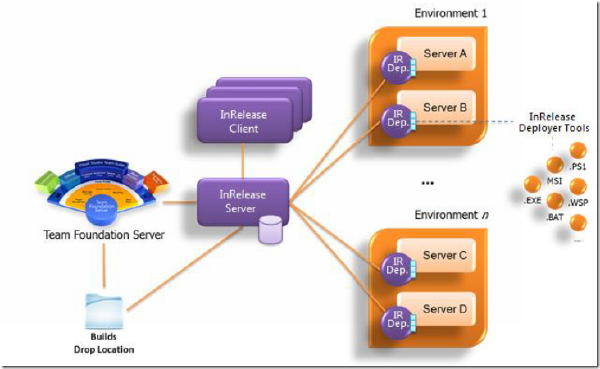
As you probably already know, Microsoft recently acquired InRelease, a release management product build by InCycle software that integrates tightly with Team Foundation Server. This acquisition fills a huge gap in the Visual Studio ALM suite, letting customers handle the release management and automatic deployment of their solution. This is a crucial feature for enabling Continuous Deployment.
In this post I will show you how to get started with using InRelease, by installing it and setting up your first release including automatic deployment to a staging server. I expect to blog some more about InRelease in the near future, looking at the nitty gritty details of release automation and deployment using InRelease.
** Source available at http://mergeworkitems.codeplex.com/ **
Half a year ago I wrote about about Merging Work Items with a custom check-in policy. The policy evaluated the pending changes and for all pending merges, it traversed the merge history to find the associated work items and let the user add them to the current changeset.
I promised to post the source to the check-in policy (and I’ve got a lot of requests for it), but I never did. This was primary for two reasons: