If you are doing any work related to containers and Azure, you are most likely using Azure Container Registry for storing images. The amoun of storage available for these images depends on the pricing tier you are using.
If you exceed this amount of storage, you will pay an additional fee for every GB of image data that exceeds the limit. See the table below for the current pricing details.
Azure Container Registry pricing details
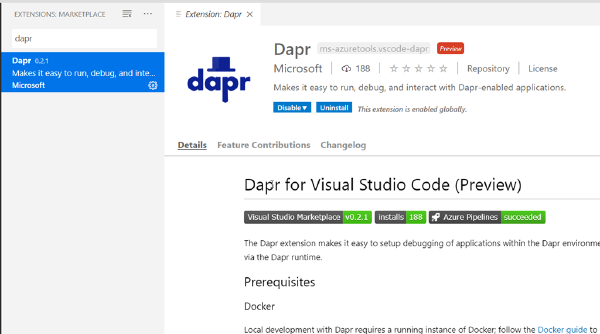
I’ve been playing around with the Dapr project recently, which is an interesting approach to building distributed, “microservices” applications. Tha main idea with Dapr is to make it easier for developers to implement distributed application running either in the cloud or on “the edge” (e.g. anywhere else), by implementing a lot of the cross-cutting concerns that is a part of every distributed app. Dapr consists of a number of building blocks, such as Service Invocation, State Service, Pub/Sub messaging and distributed tracing.
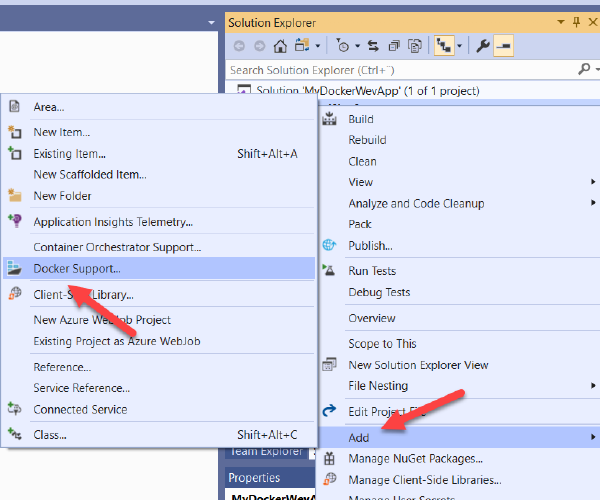
Visual Studio has for quite some time been adding features to make it easier to create, build, run and debug Dockerized applications. This is great, because Docker can be quite daunting when you intially approach it and anything that makes that journey easier should be encouraged.
However, with this tooling support comes some magic that is performed behind the scene when you hit F5 in Visual Studio. I have on numerous different occasions explained to developers what actually happens when you build and debug a Dockerized application in Visual Studio. With this post, I can send them here instead the next time 🙂
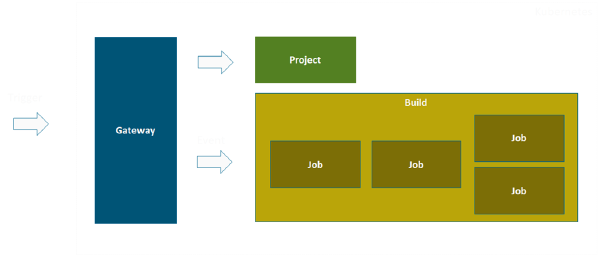
In most projects that I’ve been part of, sooner or later the need for various types of automation jobs arises. For example cleaning up old files, moving database backups, running health checks or system tests and so on.
Historically we’ve implemented these tasks using for example the Windows task scheduler, or through some custom Windows Service app. More recently, we’ve been using Azure Automation jobs for this. Sometimes it can also make sense to use CI/CD automation tools like Azure DevOps for these jobs.
When I set out my goals for 2019, one of them was to speak at new conferences. Up until 2018, I had only spoken at conferences in Sweden (like DevSum, TechDays and SweTugg). While these conferences are great, I felt that I wanted to raise the bar a bit and try to visit other conferences, including conferences abroad. And as it turned out, I reached my goal!
I thought that it would be nice to sum up my speaking year in a blog post, with some comments about each comference and a picture or two.
Many of us have eagerly been waiting for the announcement that Microsoft made at the Build 2019 conference, Windows Containers is now in public preview in Azure Kubernetes Service! Yes, it’s in preview so we still have to wait before putting applications into production but it is definitely time to start planning and testing migrations of your Windows applications to AKS, such as full .NET Framework apps.
Containers on Windows are still not as mature as on Linux of course, but they are fully supported on Windows and it is now GA on Kubernetes since version 1.14.
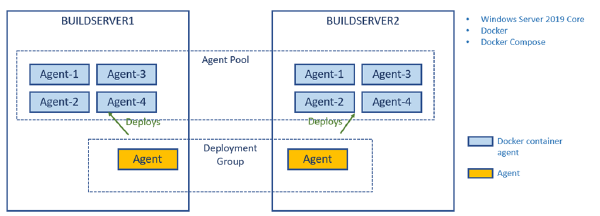
In a previous post I talked about how to create a build environment, including an Azure DevOps build agent, using Docker and Windows Containers. Using Dockerfiles, we can specify everything that we need in order to build and test our projects. Docker gives us Infrastructure as Code (no more snowflake build servers) and isolation which makes it easy to spin up multiple agents quickly on one or more machines without interfering with each other.
I’ve recently given talks at conferences and user groups on the topic of using Docker as a build engine, describing the builds using a Dockerfile. This has several advantages, such as fully consistent build no matter where you run it, no dependencies necessary except Docker.
Some things become a bit tricker though, I’ve blogged previously about how to run unit tests in a Docker build, including getting the test results out of the build container afterwards.
Having automated builds that are stable and predictable is so important in order to succeed with CI/CD. One important practice to enable this is to have a fully scriptable build environment that lets you deploy multiple, identical, build envionment hosts. This can be done by using image tooling such as Packer from HahsiCorp. Another option is to use Docker which is what I am using in this post.
Using Docker will will crete a Dockerfile that specifies the content of the image in which builds will run. This image should contain the SDK’s and tooling necessary to build and test your projects. It will also contain the build agent for your favourite CI server that will let you spin up a new agent in seconds using the docker image.
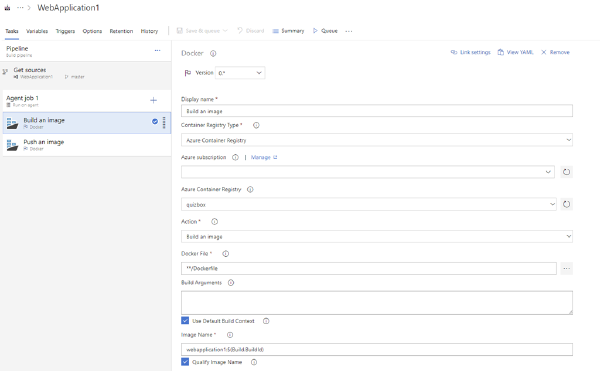
Using Docker containers for building and running your applications has many advantages such as consistent builds, build-once run anywhere and easy standardized packaging and deployment format, just to name a few.
When it comes to running the containers you might look into container orchestrators such as Kubernetes or Docker Swarm. Sometimes though, these orchestrators can be overkill for your applications. If you are developing web applications that have only a few dependent runtime components, another options is to use Azure Web App for Containers, which is a mouthful for saying that you can use your beloved Azure Web Apps with all the functionality that comes with it (easy scaling, SSL support etc), but deploy your code in a container. Best of both worlds, perhaps?
Using Docker for compiling your code is great since that guarantees a consistent behaviour regardless of where you are building your code. No matter if it’s on the local dev machine or on a build server somewhere. It also reduces the need of installing any dependencies just to make the code compile. The only thing that you need to install is Docker!
When you create a ASP.NET Core project in Visual Studio and add Docker support for it you will get a Docker file that looks something like this:\
Today Microsoft announced Azure DevOps, which is partly a rebranding of the existing Visual Studio Team Services but also has some exciting news.
The gist of the rebranding is that Azure DevOps is now a suite of service, where each service cna be acquired and used separately from the other ones. If you only want to use source control (and use some other CI/CD system) that’s fine.
Do you have your code over at GitHub and want to use the CI/CD services in Azure DevOps? Works perfectly! By breaking the whole suite down into smaller services, it will make it easier for customers to find the best fit for their needs, without having to invest in the whole suite. Of course, you will still be able to easily get the whole suite when creating new accounts.
In March, Mathias Olausson and I will run two fullday deep dive in continuous delivery and microservices on Azure.
During the day you will learn about microservice architecture and how to build and deploy these using container technology and cloud services in Microsoft Azure.
The agenda looks like this:
Microservices architecture
Design principles- Breaking up the monolith
- Implementing trunk based development practices with Visual Studio Team Services Feature flags- Pull requests- Branch/Build policies
- Using container techonologies for packaging and delivering applications with zero downtime Docker for Windows- Kubernetes Azure Container registry Azure Container Services (AKS) Deployment pipelines with Visual Studio Team Services
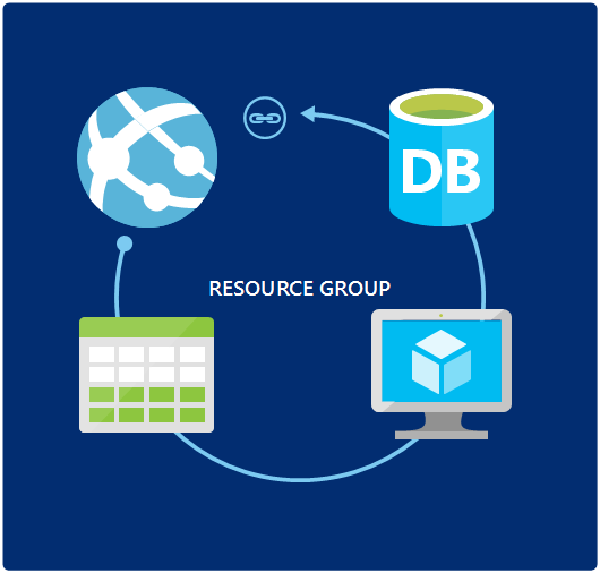
If you are running your applications in Azure, and in particular on PaaS, you need to take a look ARM templates as a way to manage your environments. ARM templates let’s you define and deploy your entire environment using JSON files that you store together with the rest of your source code. The deployment of ARM templates are idempotent, meaning that you can run them many times and it will always produce the same result.
We have decided that it is time to create a meetup group for people that are interested in the Microsoft ALM and DevOps story!
image Together with Mathias Olausson and a few other people we have created a new Meetup group and announced the first meeting.
Our plan is to continue meeting every month or so to learn about and dicuss new concept and ideas in the area of ALRM and DevOps on the Microsoft stack. This is a wide area, which spans all roles in the development process, so there will be something for everyone.
This post does not really cover something new, but since I find myself explain this to people now and then, I thought that I’d write a quick post on the subject.
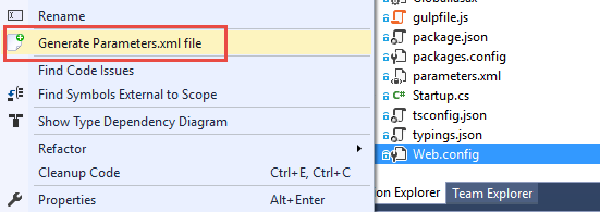
So, we want to create a web deploy package as part of our automated build, and then take this package and deploy it to multiple environments, where each environment can have different configuration settings, using VSTS Release Management. Since we only want to build our package once, we have to apply the environment specific settings at deployment time, which means we will use Web Deploy parameters.
Last year I had a great time speaking at the DevSum conference, the biggest .NET developer conference in Sweden. Back then, I talked about moving your development to the cloud using Visual Studio Team Services. Active Solution, where I work, was a gold partner for this event and in addition to me my colleagues Alan Smith and Peter Örneholm also spoke at the conference. We had a lot of fun in our booth showing the Lego robots running on Raspberry PIs, connected to Azure for movement control and result collection.
The new build system in Team Foundation Server 2015 and Visual Studio Team Services has from the start made it very easy to integrate with GitHub. This integration allows you to create a build in TFS/VSTS that fetches the source code from a GitHub repository. I have blogged about this integration before, at http://blog.ehn.nu/2015/06/building-github-repositories-in-tfs-build-vnext/.
Publisinh a GitHubRelease from VSTS # This integration allows you to use GitHub for source code, but use the powerful build system in TFS/VSTS to run your automated builds. But, when maintaining the project at GitHub you often want to publish your releases there as well, with the output from your build.
Today Brian Harry announced that the first release of TFS 2015 Update 2 is available. It is an RC with a go-live license, which means that Microsoft will support you if you install it in production, and it will be a direct supported upgrade to RTM once it is released.
Read the full release notes for Update 2 RC1 here: https://www.visualstudio.com/en-us/news/tfs2015-update2-vs
One huge thing with the release is that Update 2 includes the new Release Management vNext feature that has up until now only been available in the service (although you can use that for on premise TFS and deployments). But now you don’t have to rely on VSTS for hosting the service, it is now part of TFS 2015 Update 2!
Microsoft’s new version of Visual Studio Release Management is currently in public preview in VSTS. It is currently targeted for the TFS 2015 Update 2 version that should be shipped later this spring.
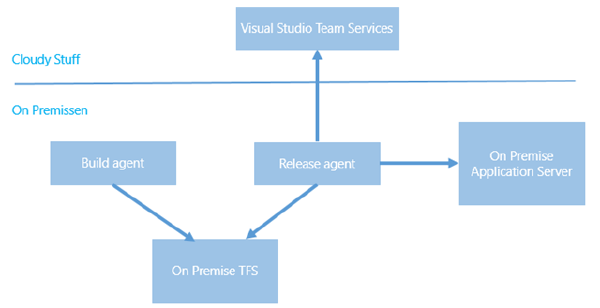
However, even if you are not all in on Visual Studio Team Services, you can still use this service! Since the build/release agents that are used can run on premise without any necessary firewall ports being opened inbound, you have full access to any internal TFS servers and application servers that you want to deploy to.
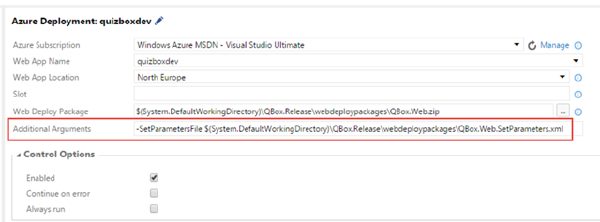
I have blogged before about how to deploy an Azure Web App using the new build system in TFS 2015/Visual Studio Team Services. In addition to configure an Azure service endpoint, it is really only a matter of using the built-in Azure Web App Deployment task.
However, in many cases I have decided not to use this task myself since it has been lacking a key feature: Applying deployment parameters using the SetParameter.xml file.
Since a couple of months back, Microsoft new Release Management service is available in public preview in Visual Studio Team Services. According to the current time plan, it will be released for on-premise TFS in the next update (Update 2).
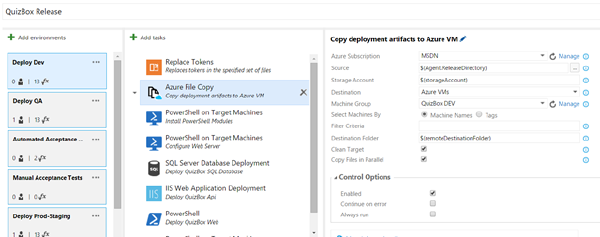
Using a tool like release management allows you to implement a deployment pipeline by grabbing the binaries and any other artifacts from your release build, and then deploy them across different environments with the proper configuration and approval workflow. Building your binaries once and only once is a fundamental principal of implementing continuous delivery, too much can go wrong if you build your application every time you deploy it into a new environment.
image This december we at Active Solution team up with Microsoft Sweden to deliver a full day of Azure and Internet of Things (IoT) goodness in 4 different cities around Sweden:
Malmö – Dec 1- Göteborg – Dec 2- Umeå – Dec 8- Stockholm – Dec 9 This is a unique opportunity for devlopers, startups and students that want to learn more about what Microsoft Azure has to offer and how you can implement IoT solutions together with Azure.
Today at the Microsoft Connect() event, Microsoft announced the public preview of the brand new version of Visual Studio Release Management. The public preview is available on Visual Studio Team Services (a.k.a. Visual Studio Online, in case you missed that announcement! :-)), and will debut on premise later in 2016.
So, what’s this new version about? Let’s summarize some of the major features about it:
Web Based # The existing version of Visual Studio Release Management, that was originally acquired from InCycle back in 2013, uses a standalone WPF client for authoring, triggering and tracking releases. It always felt a bit awkward and wasn’t really integrated with the rest of TFS. The new version is completely rewritten to be a web based experience and is part of the web access, as a new “Release” tab.
With today’s announcement at Microsoft Connect() about the public preview of the next generation of Visual Studio Release Management, it is also time to announce the (imminent) release of a new book that covers among other things this new version of RM.
Me and my fellow ALM MVP Mathias Olausson have been working hard during the last 6 months on this book, using early alpha and beta versions of this brand new version of Visual Studio Release Management. Writing about a changing platform can be rather challenging, and our publisher (Apress) have been very patient with us regarding delays and late changes!
Anyone that has been involved with setting up the infrastructure that is needed to perform on premise load testing of a realistic number of users knows how much work that is to both setup and to maintain. With Visual Studio Ultimate/Enterprise you needed to create a test rig by creating multiple machines and then installing a test controller and test agents on all the machines and configure them to talk to each other.
I often talk to different teams about how they work with Team Foundation Server or Visual Studio Online. I get a lot of questions about different features, and some of them tend to come up more often than other. So here is a list of 10 features in TFS that I get questions about regularly or that I have noticed a lot of teams don’t know about. It is by no means exhaustive, and it is a mixture of smaller and larger features, but hopefully you will find something here that you didn’t know about before.
By now, many of you should have had the chance to at least play with the new build system that was released in TFS 2015 and Visual Studio Online. Here is an introductory post I wrote about it when it entered public preview back in January.
Doing the basic stuff is very easy using the new build system, especially if you compare it with the old one, which is now referred to as XAML builds. Creating and customizing build definitions is just a matter of adding the tasks that you want to use and configure them properly, everything is done using the web interface that is part of the TFS Web Access.
I finally got around to upgrading the Inmeta AssociateRecentWorkItems extension to support Visual Studio 2015. Several people have contacted me about this, sorry that it took so long!
About the extension # This extension makes it easy to associate multiple checkins with the same work items, as it shows a list of the recently associated work items from which you can easily associate one with the current pending changes.
In the brave new world of Microsoft where a lot of the frameworks and languages that they build now are open sourced over at GitHub, it comes as no surprise that GitHub is nicely integrated into both Visual Studio and TFS Build vNext. This makes it very easy to setup builds that gets the source code from your GitHub repo but uses TFS Build vNext to build it. It also allows you to setup CI builds, that is builds that trigger automatically when someone does a commit in the corresponding Git repo.
TFS 2015 is around the corner, and with it comes a whole new build system. All the biggest pain points from the existing build system (now called “XAML builds”) are gone and instead we get a light weight build system with a web UI that makes it very easy to customize our build processes and that doesn’t perform a lot of magic such as redirecting your build output for example.
In this post, I will show you just how easy it is to setup a build that builds a standard ASP.NET web application, generates a web deploy package as part of the build and then pick up this package and deploys it to a Azure web site. As part of this, you will also see how smooth the integration with Azure is when it comes to connecting your subscription.
VSO This year I’ll be presenting at DevSum, which is the largest .NET conference in Sweden. I’ll be talking about Visual Studio Online, Microsoft cloud offering for your development projects. I will go through all the major features of VSO, such as source code hosting, agile planning tooling , automated builds, test management and integration with other 3rd party service such as Trello and AppVeyor. I will also talk about how you can migrate your existing projects to VSO
Update: The exension is now also available for Visual Studio 2015 Preview: https://visualstudiogallery.msdn.microsoft.com/f5ae0a1d-005f-4a09-a19c-3f46ff30400a
GitFlow is a popular workflow that provides a consistent naming convention to your branches as well as clear guidance on how your code should flow through these branches. GitFlow was introduced by Vincent Driessen in this post back in 2010, and quickly caught a lot of attention in the community. Since GitFlow by nature is very prescriptive it made a lot of sense to implement tooling support for the workflow, which Vincent added shortly after. His repo is available at https://github.com/nvie/gitflow, although it hasn’t been updated since 2012. However, several forks has been made, one of the most active is being developed by Peter van der Does at https://github.com/petervanderdoes/gitflow
In my previous post, I showed how you can trigger a release in Visual Studio Release Management from a TeamCity build step.
When Visual Studio Release Management 2013 RTM’ed, it came with customized TFS build templates that made it easy to trigger a release from a TFVC or Git build in TFS. These build templates relied on the ReleaseManagementBuild command line client, so it required the VSRM client being installed on the build server.
Currently, Microsoft is working hard on a complete rewrite of the TFS Build system. They announced this, among other things, at the Connect event back in November and did a short demo of it. It is not yet available, but as part of the MVP program, a few of us has now been fortunate enough to get access to an early preview of the new build system.
Note: This version is in pre-alpha state, meaning that a lot of things can and will change until the final version!
The last couple of updates to Visual Studio has included a lot of new functionality for Visual Studio Release Management. The biggest one is the introduction of so called vNext releases, that leverages Powershell DSC for carrying out the provisioning and deployments of environments and applications.
Also included in Visual Studio 2013 Update 3 was the introduction of a REST API that allows us to both trigger new releases and read back information about them. This API is only available for vNext release templates, and will probably not be implemented for the “old” agentbased deployments.
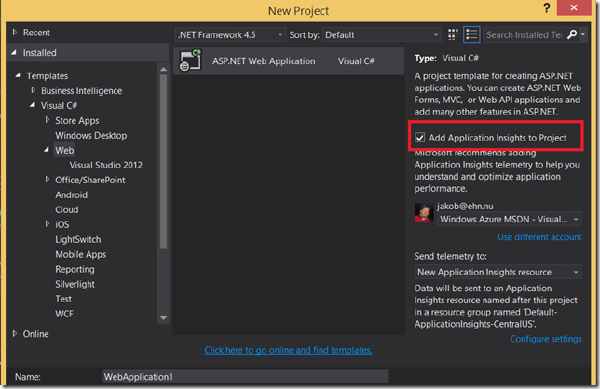
Getting started with Application Insights (AI) in a new or existing application is very easy. From Visual Studio 2013 Update 3 it is even integrated right into the New Web Project dialog:
image When you select this option, Visual Studio will automatically create a new instrumentation key for you that identifies the web application, and insert the necessary Javascript into your master layout page that takes care of sending usage information to Application Insights. Try running your application, click around a few times, and you will see information showing up in the Azure portal within, literally, a few seconds.
The last couple of years it has become apparent that using multiple team projects in TFS is generally a bad idea. There are of course exceptions to this, but there are a lot ot things that becomes much easier to do when you put all of your projects and team in the same team project.
Fellow ALM MVP Martin Hinshelwood has blogged about this several times, as well as other people in the community. In particular, using the backlog and portfolio management tools makes much more sense when everything is located in the same team project.
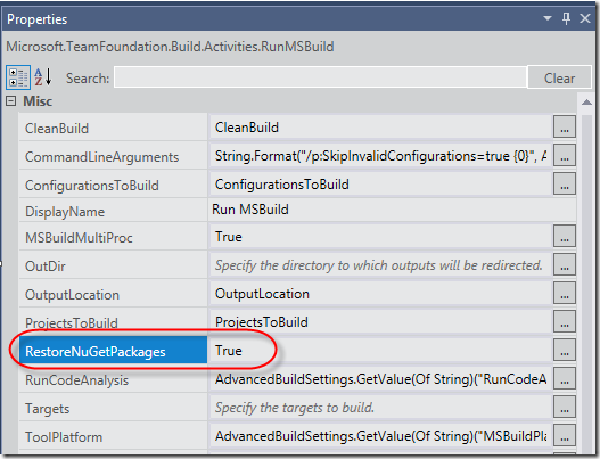
Problem # One of our customers recently had a problem with NuGet restore when they created a new build template, based on the standard TfvcTemplate.12.xaml template. In TFS 2013, package restore is done automatically by the default build templates.
It is configured as part of the RunMSBuild activity, where you can enable and disable this by setting the EnableNuGetPackageRestore property:
Almost four years ago I wrote a post on how to create a build definition programmatically using the TFS 2010 API. The code is partyl still valid, but since a lot of the information in a build definition is dependent on the build process template, the code in the blog does not work properly for the TFS 2013 default build templates. In addition, since the introduction of Git in TFS 2013, there are some other differences in how you create a build definition for a Git team project compared to a TFVC team project.
This year at the second MVP summit I presented a new solution for hosting a private extension gallery. Since then I have finished up the code and put it up on the CodePlex site so you can use it as you want to. In this blog post I will walk through the background and how you deploy and use the solution.
Note: The sourcecode is available at http://inmetavsgallery.codeplex.com/ as a new 2.0 release. I have branched the original source code so that it is still available.
Yesterday, on September 12th, we arranged a Visual Studio Community Day 2013 at Mesh in central Oslo. The agenda was in two parts, first we talked about how you can improve your delivery cadence by using Visual Studio ALM. We went through all stages including planning, developing, testing and deployment. In the second part, we showed some of the new goodies in Visual Studio 2013, where we focused mostly on Git and InRelease which are the two major additions in Visual Studio 2013 ALM. Unfortunately we didn’t have the time to go through everything that we wanted, but we have put up links and some more information on our public GitHub site, at https://github.com/Inmeta/public/wiki/VS2013-Community-Day
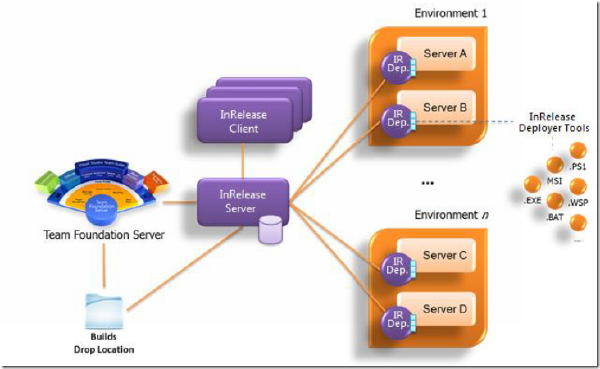
As you probably already know, Microsoft recently acquired InRelease, a release management product build by InCycle software that integrates tightly with Team Foundation Server. This acquisition fills a huge gap in the Visual Studio ALM suite, letting customers handle the release management and automatic deployment of their solution. This is a crucial feature for enabling Continuous Deployment.
In this post I will show you how to get started with using InRelease, by installing it and setting up your first release including automatic deployment to a staging server. I expect to blog some more about InRelease in the near future, looking at the nitty gritty details of release automation and deployment using InRelease.
The last couple of months I have been working together with Mathias Olausson, Mattias Sköld and Joachim Rossberg on a new book project for Apress that has just been published. The book is called Pro Team Foundation Service and covers all aspects of working with Team Foundation Service, Microsoft’s hosted version of Team Foundation Server in the cloud. I have mainly worked on the chapter related to automated build and continuous deployment, but also with some of the other chapters.
Extension available at: http://visualstudiogallery.msdn.microsoft.com/9ed2d30c-a692-42b0-a21d-cdc8d2bf322c
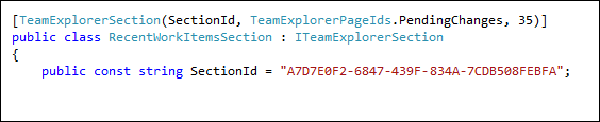
I have been playing around a bit lately with extending Team Explorer 2012, mostly because it is fun but also to fix a little nagging feature that should have been there from the beginning. Often I (and a lot of other people) find myself wanting to associate several consecutive changesets to the same work item. The problem is that Team Explorer does not remember this, instead I have to either remember the ID or use a query that hopefully will match the work item.
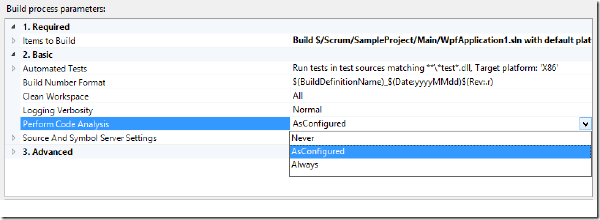
Running Static Code Analysis (SCA) is something that you should be doing regularly to verify your code base against a large set of rules that will check your code for potential problems and how it comply with standard patterns such as naming conventions for example. Microsoft include several different rule sets that you can use for starters, but you can build your own rule sets as well, that contain the rule that you want to use, In addition, you can write your own custom rules and add these to your rule sets.
During the summer and fall this year, me and my colleague Terje Sandstrøm has worked together on a book project that has now finally hit the stores! The title of the book is Team Foundation Server 2012 Starter and is published by Packt Publishing.
You can find it at http://www.packtpub.com/team-foundation-server-2012-starter/book or from Amazon http://www.amazon.com/dp/1849688389 image The book is part of a concept that Packt have with starter-books, intended for people new to Team Foundation Server 2012 and who want a quick guideline to get it up and working. It covers the fundamentals, from installing and configuring it, and how to use it with source control, work items and builds. It is done as a step-by-step guide, but also includes best practices advice in the different areas. It covers the use of both the on-premises and the TFS Services version. It also has a list of links and references in the end to the most relevant Visual Studio 2012 ALM sites.
Updated January 13th 2013: Added note about ASP.NET MVC 4.0 prerequirement
Note: The installer and the complete source code is available over at CodePlex at the following location: http://inmetavsgallery.codeplex.com
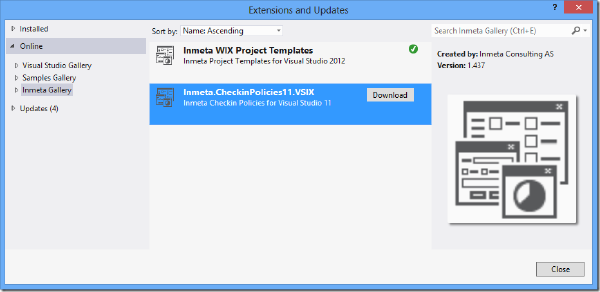
Extensions and addins are everywhere in the Visual Studio ALM ecosystem! Microsoft releases new cool features in the form of extensions and the list of 3rd party extensions that plug into Visual Studio just keeps growing. One of the nice things about the VSIX extensions is how they are deployed. Microsoft hosts a public Visual Studio Gallery where you can upload extensions and make them available to the rest of the community. Visual Studio checks for updates to the installed extensions when you start Visual Studio, and installing/updating the extensions is fast since it is only a matter of extracting the files within the VSIX package to the local extension folder.
TFS 2012 introduces a new type of Lab environment called Standard Environment. This allows you to setup a full Build Deploy Test (BDT) workflow that will build your application, deploy it to your target machine(s) and then run a set of tests on that server to verify the deployment. In TFS 2010, you had to use System Center Virtual Machine Manager and involve half of your IT department to get going. Now all you need is a server (virtual or physical) where you want to deploy and test your application. You don’t even have to install a test agent on the machine, TFS 2012 will do this for you!
Yesterday we pushed out a new release (August 2012) of the Community TFS Build Extension, including a new version of the Community TFS Build Manager (1.0.4.6)
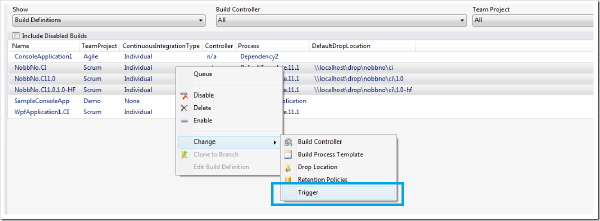
The two big new features in the Build Manager in this release are: Set Triggers It is now possible to select one or more build definitions and update the triggers for them in one simple operation: \
image You’ll note that we have started collapsing the context menu a bit, the list of commands are getting long! 🙂
During the spring/summer I have been involved with reviewing a new book about Visual Studio 2012 ALM from Apress called “Pro Application Lifecycle Management with Visual Studio 2012”
The book is written by a fellow Visual Studio ALM MVP Mathias Olausson and his colleague Joachim Rossberg. It is a very comprehensive book that covers both all aspects of ALM in general and also how to implement these practices with Visual Studio 2012. The book also has several chapters dedicated to measuring your improvements by using ALM assessments and metrics.
Together with todays announcement that Visual Studio 2012 as been officially released, the ALM Rangers have also simultaneously shipped (“sim-shipped”) a massive set of solutions for feature gaps and value-add guidance for the ALM community.
http://blogs.msdn.com/b/visualstudioalm/archive/2012/08/15/welcome-to-visual-studio-2012-alm-rangers-readiness-wave.aspx
You can find a complete list of ALM Ranger solutions here: http://msdn.microsoft.com/en-us/vstudio/ee358787
I have been a part of the Team Foundation Build Customization Guide, which have been updated with new features in Visual Studio 2012, as well as the top requested features from the first version of the guidance. As part of this guidance, we have also developed the Community TFS Build Manager, a Visual Studio extension that simplifies a lot of tasks when working with TFS Build. It now exist both for Visual Studio 2012 as well as for Visual Studio 2010. I’d like to thank the rest of the team for doing such a great job, especially Mike Fourie who has been driving the entire project in style!
I have posted before on how to implement dependency replication using TFS Build, once for TFS 2008 using MSBuild and then for TFS 2010 using Windows Workflow. The last post was not complete (I could not post all implementation details back then for various reasons), so I decided that I should post a new solution for this, but this time using the Community TFS Build Extensions library.
If it is a good idea to store your dependencies in source control or not is a question that is well debated. I’m not going to argue pros and cons here, but for those of you that want to go this way here is a build process template that will get you started.
I finally got around to push out a version of the Community TFS Build Manager that is compatible with Visual Studio 2012 RC. Unfortunately I had to do this as a separate extension, it references different versions of the TFS assemblies and also some properties and methods that the 2010 version uses are now obsolete in the TFS 2012 API.
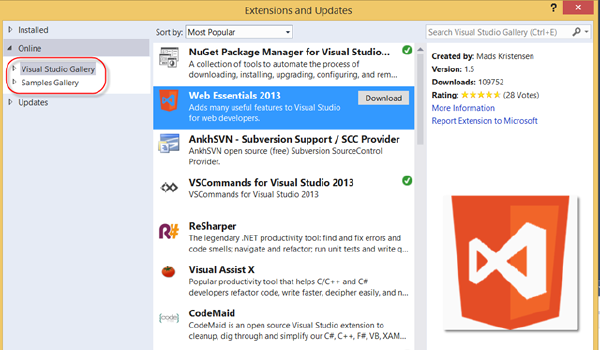
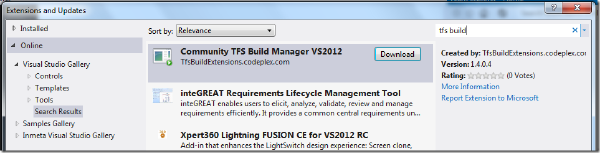
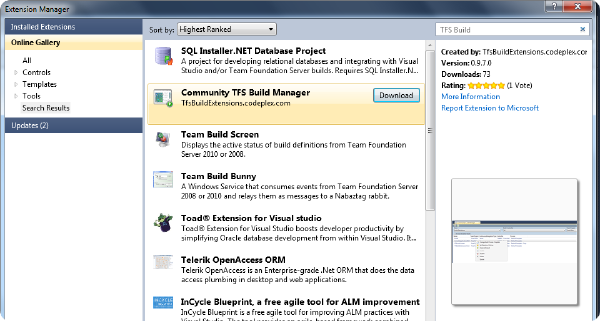
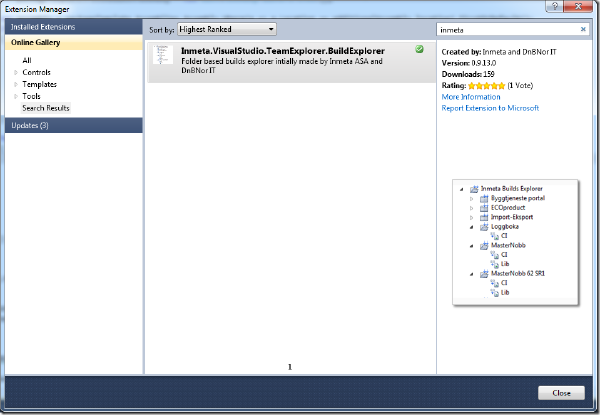
To download it, just open the Extension Manager, select Online and search for TFS Build:
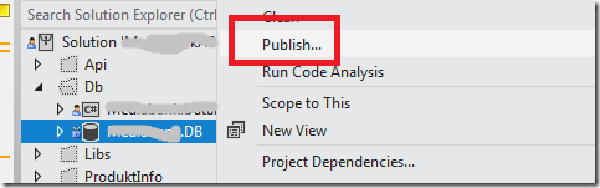
As many of you probably have noticed by now, Visual Studio Database Projects are not supported in the next version of Visual Studio (currently named Visual Studio 11 Beta). When you open a solution containing a VSDB project, VS11 wants to convert it to a SQL Server Developer Tools project instead.
This project type ships with SQL Server and has a feature set that covers most of the functionality of the VSDB project, plus some new features, such a support for SQL 2012 and SQL Azure. A feature comparison list between the two project types can be found here: http://blogs.msdn.com/b/ssdt/archive/2011/11/21/sql-server-data-tools-ctp4-vs-vs2010-database-projects.aspx
Today I received an email from Microsoft stating that:
Dear Jakob Ehn, Congratulations! We are pleased to present you with the 2012 Microsoft® MVP Award! This award is given to exceptional technical community leaders who actively share their high quality, real world expertise with others. We appreciate your outstanding contributions in Visual Studio ALM technical communities during the past year.
This is incredibles news and I really want to thank both the people at Microsoft who nominated me and some of the (now) fellow MVP’s that I have worked with over the last year, both as part of the Visual Studio ALM Rangers program and as part of the TFS Build Extensions community project, in particular Mike Fourie and of course my colleague and main source of inspiration Terje Sandström 🙂
We have been using TFS 2010 build for distributing a build in parallel on several agents, but where the actual compilation is done by a bunch of external tools and compilers, e.g. no MSBuild involved. We are using the ParallelTemplate.xaml template that Jim Lamb blogged about previously, which distributes each configuration to a different agent. We developed custom activities for running these external compilers and collecting the information and errors by reading standard out/error and pushing it back to the build log.
A year ago I blogged about how to manage your build process templates using the TFS API. The main reason for doing this is that you can (and should!) store your “golden” build process templates in a common location in your TFS project collection, and then add them to each team project that requires those templates. This way, you can fix a bug or add a new feature in one place and have the change affect all build definitions.
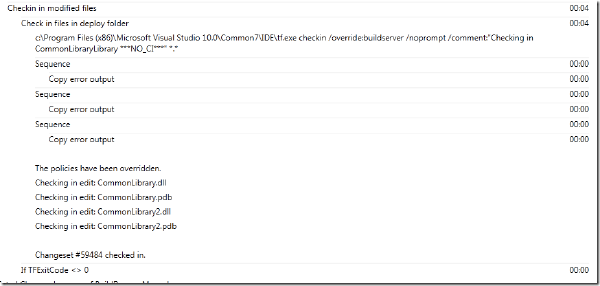
The InvokeProcess activity is very useful when it comes to running shell commands and external command line tools during a build process. When it comes to integrating with TFS source control during a build, the TF.exe command line tool can be your friend, as it lets you do most of the usual stuff such as check-in, checkout, add, modify workspaces etc.
However, it can be a bit tricky to handle the output from tf.exe, since it often produces warnings that is not necessarily a problem for your build. This is not a problem related only to tf.exe, but to all applications that produces errors and warnings on the canonical error format.
I’ll be running a Team Foundation Server 2010 Deep Dive class twice this spring in Stockholm at our friends at Cornerstone.
The class is 4 days and we will be “diving deep” into all aspects of TFS 2010, including:
Deployment
Administration
Source Control
Check-in Policies
Branching strategies
Work Items
Office integration
Reporting
Customization
Team Build
Working with build definitions
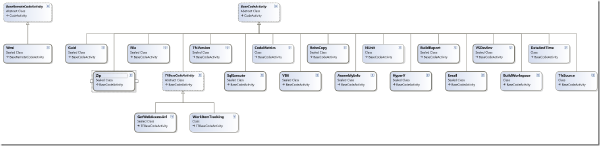
Developing Custom Activities
Automatic deployment
Test Management
Microsoft Test Manager
Creating and running manual tests
At my company we write a lot of tools and extensions that uses the TFS API to automate various things for us. A very common thing to automate is the creation of work items and the areas and iterations structure.
Creating a work item using the TFS API is simple, just connect to TFS, get the WorkItemStore service object and create a new work item and set any fields that you want to: Creating a work item
The latest release of the Community TFS Build Extensions include a brand new tool called Community TFS Build Manager and has been created for two reasons:
An implementation of the Team Foundation Build API which is referenced by the Rangers Build Customization Guidance V2 (available H1 2012) \ Provide a solution to a real problem. The Community TFS Build Manager is intended to ease the management of builds in medium to large Team Foundation Server environments, though it does provide a few features which all users may find useful. The first version of the tool has been implemented by myself and Mike Fourie. You can download the extension from the Visual Studio Gallery here: http://visualstudiogallery.msdn.microsoft.com/16bafc63-0f20-4cc3-8b67-4e25d150102c
Brian Harry just posted an update on the latest version of the TFS 2010 Power Tools. This will most likely by the last version of the Power Tools for the TFS 2010 version, next version will target Dev11!
The main improvements in this release are:
Team Foundation Server Power Tools for Eclipse
MSSCCI Provider for 64-bit IDE’s
VS 2010 Power Tools update
Improved Work item Search
Best Practice Analyzer now also analyzes the integration with Project Server, if you are using it
I often use the VS 2010/TFS 2010 evaluation virtual machines that Microsoft publishes every 6 months with the latest bits. It’s a great timesaver to use an image where everything is already setup and also contains a bit of sample data that is useful when you want to demo something for customers.
There is one thing that has always been a, albeit small, but still very annoying problem and that is that the builds always partially fail when you start using the image. When you want to demo the powerful feature of associated work items in a build, you’ll find yourself with your pants down since the build fails when trying to update the associated work item! Even when looking at the historical builds for the Tailspin Toys project, you will notice that they also partially failed:
*UPDATE 10.01.2012: *
The issue has been resolved by Microsoft and will be addressed in patch soon. Here is the full description from the Connect site: \
“We’ve identified the rootcause. This bug was introduced in the compatibility GDR patch released for VS 2010 to work against 2011 TFS Server. We shall be releasing a patch soon. Till then, please follow the workaround mentioned to unblock yourselves. “
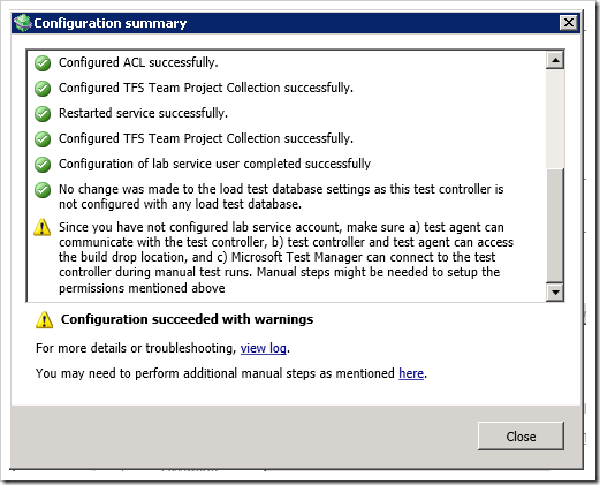
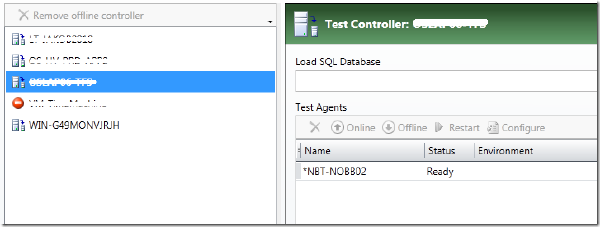
When setting up a physical environment for a new test controller on our TFS 2010 server, I ran into a problem that seems to be related to having installed the Visual Studio 2010 SP1 TFS Compatibility GDR and/or Visual Studio 2011 Developer Preview
Anyone working with developing custom activities in TFS 2010 Build has run into the following dreadful error message when running the build:
TF215097: An error occurred while initializing a build for build definition TeamProjectMyBuildDefinition: Cannot create unknown type ‘{clr-namespace:[namespace];assembly=[assembly]}Activity
What the error means is that when the TFS build service loads the build process template XAML for the build definition, it can’t create an instance of the customer workflow activity that is referenced from it.
Today the first stable release of the Community TFS 2010 Build Extensions shipped on the CodePlex site. Visual Studio ALM MVP Mike Fourie (aka Mr MSBuild Extension Pack) has been the leader of this project and has done a tremendous job, both in contributing functionality as well as coordinating the work for the first release. Great work Mike! I (as well as several others) have contributed a small part of the activities, I plan to be working on the upcoming releases as well.
** Source available at http://mergeworkitems.codeplex.com/ **
Half a year ago I wrote about about Merging Work Items with a custom check-in policy. The policy evaluated the pending changes and for all pending merges, it traversed the merge history to find the associated work items and let the user add them to the current changeset.
I promised to post the source to the check-in policy (and I’ve got a lot of requests for it), but I never did. This was primary for two reasons:
This weekend we at Inmeta release a free Visual Studio 2010 Team Explorer extensions that solves the problem with the Builds node in the Team Explorer not being hierarchic. For some reason, this part of the Team Explorer didn’t get the nice hierarchical folder structure that the Work items node got in 2010. The result is that, for a company that has several hundreds of builds in the same team project, it becomes very hard to navigate.
The build process template and custom activity described in this post is available here: http://cid-ee034c9f620cd58d.office.live.com/self.aspx/BlogSamples/Inmeta%20TFS%20Build%20Sample.zip
Running code metrics has been available since VS 2008, but only from inside the IDE. Yesterday Microsoft finally released Visual Studio Code Metrics Power Tool 10.0, a command line tool that lets you run code metrics on your applications. This means that it is now possible to perform code metrics analysis on the build server as part of your nightly/QA builds. In this post I will show how you can run the metrics command line tool from a build, and also a custom activity that reads the output and appends the results to the build log, and fails the build if the metric values exceeds certain (configurable) treshold values.
*** The sample build process template discussed in this post is available for download from here: http://cid-ee034c9f620cd58d.office.live.com/self.aspx/BlogSamples/ILMerge.xaml ***
In my previous post I talked about library builds that we use to build and replicate dependencies between applications in TFS. This is typically used for common libraries and tools that several other application need to reference.
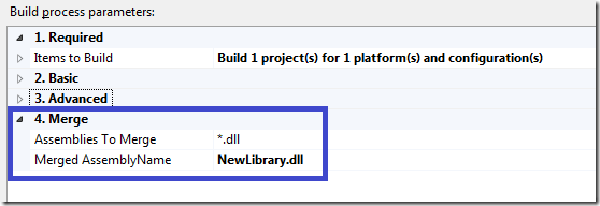
When the libraries grow in size over time, so does the number of assemblies. So all solutions that uses the common library must reference all the necessary assemblies that they need, and if we for example do a refactoring and extract some code into a new assembly, all the clients must update their references to reflect these changes, otherwise it won’t compile.
Some time ago, I wrote a post about how to implement dependency replication using TFS 2008 Build. We use this for Library builds, where we set up a build definition for a common library, and have the build check the resulting assemblies back into source control. The folder is then branched to the applications that need to reference the common library. See the above post for more details.
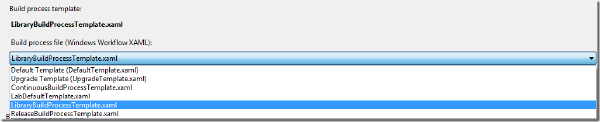
Of course, we have reimplemented this feature in TFS 2010 Build, which results in a much nicer experience for the developer who wants to setup a new library build. Here is how it looks: There is a separate build process template for library builds registered in all team projects \
Update 15.03.2014 - Fixed broken link to download
*** The custom activity is availabe for download here: https://onedrive.live.com/redir?resid=EE034C9F620CD58D%21168 ***
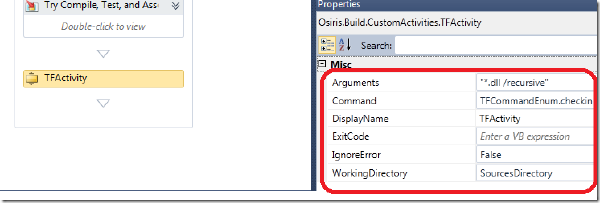
Often when creating different types of release builds (e.g. where you build something that should be installed or consumed by other applications) there is a need to check in the results of the build back to source control. A common build type for us at Inmeta is Library Builds, which we use for common libraries that are shared among several applications. We have created a special build process template for this scenario that handles versioning, copying of the resulting binaries to a pre-defined folder, optionally merges the assemblies using ILMerge, and finally checking that binaries back to TFS as part of the build.
One of the great new features in TFS 2010 Build was the ability to define Build Process Templates that can be reused across build definitions. The Build Process Template file itself is a Windows Workflow 4.0 xaml file and can be stored anywhere in source control. When a developer creates a new build definition in Team Explorer, he can choose from a list of Build Process Templates:
image
Update 2012-01-23: Added note about .NET framework
Martin Hinshelwood wrote an excellent post recently http://nakedalm.com/team-foundation-server-2010-event-handling-with-subscribers/ ) about a new type of integration available in TFS 2010, namely server side event handlers, that is executed within the TFS context. I wasn’t aware of this new feature and as Martin notes, there doesn’t seem to be any material/documentation of it at all. Previously, when you wanted some custom action to be executed when some event occurs in TFS (check-in, build completed…) you wrote a web/WCF service with a predefined signature and subscribed to the event using bissubscribe.exe. Usually you want to get more information from TFS than what is available in the event itself so you would have to use the TFS client object model to make new requests back to TFS to get that information. The deployment of these web services is always a bit of a hassle, especially around security. Also there is no way to affect the event itself, e.g. to stop the event from finishing depending on some condition. This can be done using server side events.
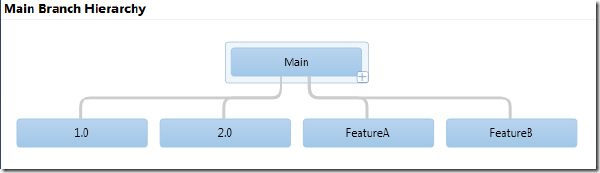
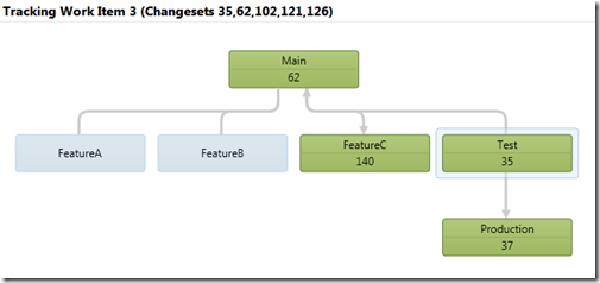
In TFS 2010, branching and merging have been greatly improved with support for branch visualization and tracking of changesets and work items across branches. A simple example of this looks like this: \
image image Here we track Work Item nr 3 which was originally resovled in the Test branch (with changeset 35). We can also see that the work item has been merged into the Production branch (as changeset 37), back to Main (62) and finally to FeatureC (140). If we switch to the Timeline view, we get a nice view of the order of these merges, together with the dates.
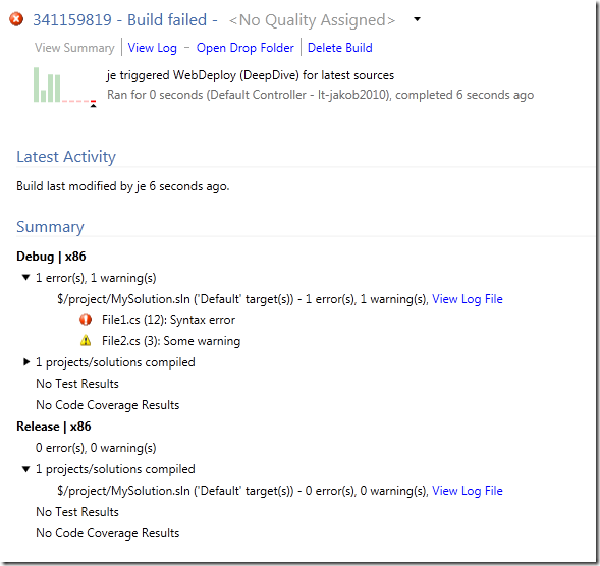
In TFS 2010, I have been asked this question several times: I have a build setup with tests and (possibly) code coverage, but in the build summary report it only shows No Test Results and No Code Coverage Results
What’s more interesting is that when I log in and view the build, I can see the test results!
This does of course imply that it is a one of those annoying security issues, and of course it is. To be able to see test results you must have the View Test Runs permission, which can be assigned/revoked at the security group level per team project:
Note: Swedish post
Efter att ha kört många seminarier, workshops och deep dive kurser på Visual Studio och TFS 2010 i Norge är det nu äntligen dags för oss att köra kurs i Sverige!
Första tillfället blir nu i oktober på Cornerstone 18-21 Oktober. Saxat från kursbeskrivningen:
# T359 - Effektiv systemutveckling med Visual Studio och Team Foundation Server 2010 # I denna utbildning lär vi dig hur du och din organisation kan effektivisera systemutvecklingsprocessen med hjälp av Visual Studio och Team Foundation Server. Målgruppen för denna kurs är främst utvecklare och arkitekter men den är lämplig även för testare och den som ansvarar för metoder och processer.
By default, TFS Team Build creates a new folder in the drop location for every build. I have seen request from people that wonder how to always have team build put the output in the same folder every time, effectively overwriting the results from the last build. This is easy to accomplish by adding an activity that copies the drop folder to a fixed location.
To copy the result of the build to a fixed location, you need to modify the build process template:
Recently I’ve come across this error a couple of times when running builds that exeucte unit tests using Test containers:
API restriction: The assembly ‘file:///C:Buildsmyassembly.dll’ has already loaded from a different location. It cannot be loaded from a new location within the same appdomain.
Every time I’ve got this error, the project has been a web application, and the path to the assembly points down to the _PublishedWebsites directory that is created beneath the Binaries folder during a team build.
UPDATE: 2010-09-15 – Added details about the use of the ExitCode variable
One of the most common complaints from people starting to use Team Build is that is doesn’t support building Microsoft’s own Setup and Deployment project (*.vdproj). When creating a default build definition that compiles a solution containing a setup project, you’ll get the following warning:
The project file “MyProject.vdproj” is not supported by MSBuild and cannot be built.
I still see people complaining about the long time it takes to load test results from a TFS build in Visual Studio. And they make a valid point, it does take a very long time to load the test results, even for a small number of tests. The reason for this is that the test results is not just the result of the test run but also all the binaries that were part of the test run. This often also means that the debug symbols (*.pdb) will be downloaded to your local machine. This reason for this behaviour is that it letsyou re-run the tests locally.
When upgrading from TFS 2008 to TFS 2010, all builds are “upgraded” in the sense that a build definition with the same name is created, and it uses the UpgradeTemplate build process template to execute the build. This template basically just runs MSBuild on the existing TFSBuild.proj file. The build definition contains a property called ConfigurationFolderPath that points to the TFSBuild.proj file.
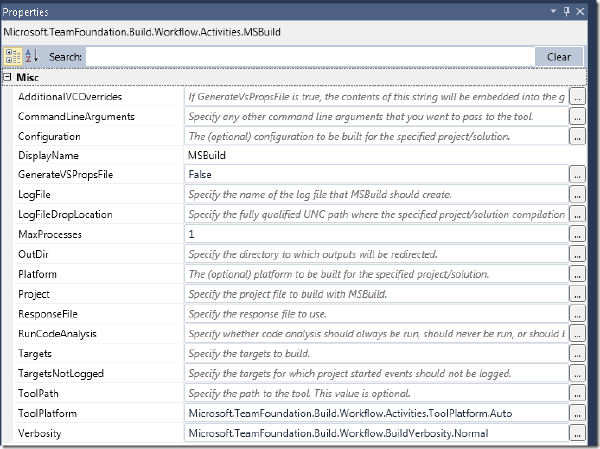
So, existing builds will run just fine after upgrade. But what if you want to use the new workflow functionality in TFS 2010 Build, but still have a lot of MSBuild scripts that maybe call custom MSBuild tasks that you don’t have the time to rewrite? Then one option is to keep these MSBuild scrips and call them from a TFS 2010 Build workflow. This can be done using the MSBuild workflow activity that is avaiable in the toolbox in the Team Foundation Build Activities section:
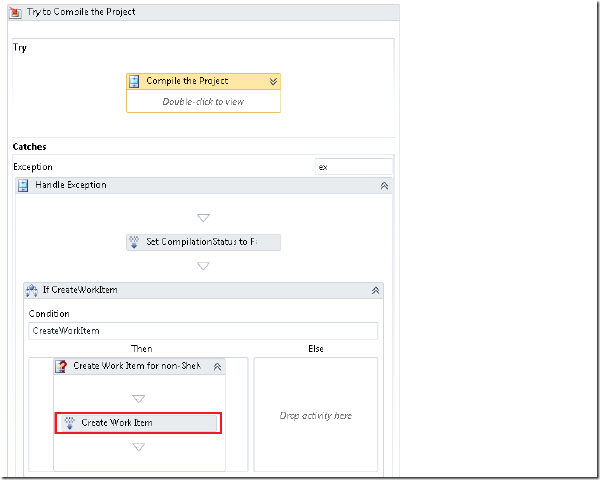
The default behaviour in TFS Team Build (all versions) is to create a bug work item when a build fails. This main benefit of this is that you get a work item for something that needs to be done, namely to fix the build!. When the developer responsible for the build failure has fixed the problem, he/she can associated that check-in with the work item that was created from the previous build failure.
*** UPDATE 2010-08-17 ** Several people have asked me for a complete sample application, so I have put this together and it is available here: http://cid-ee034c9f620cd58d.office.live.com/self.aspx/BlogSamples/CreateTFSBuildDefinition.zip
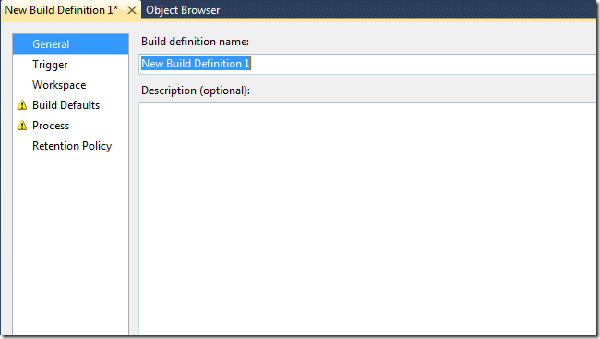
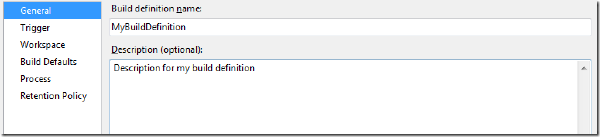
In this post I will show how to create a new build definition in TFS 2010 using the TFS API. When creating a build definition manually, using Team Explorer, the necessary steps are lined out in the New Build Definition Wizard:
image
When embracing Team Build 2010, you typically want to define several different build process templates for different scenarios. Common examples here are CI builds, QA builds and release builds. For example, in a contiuous build you often have no interest in publishing to the symbol store, you might or might not want to associate changesets and work items etc. The build server is often heavily occupied as it is, so you don’t want to have it doing more that necessary. Try to define a set of build process templates that are used across your company. In previous versions of TFS Team Build, there was no easy way to do this. But in TFS 2010 it is very easy so there is no excuse to not do it! :-)
In TFS Team Build (all versions), each build is associated with changesets and work items. To determine which changesets that should be associated with the current build, Team Build finds the label of the “Last Good Build” an then aggregates all changesets up unitl the label for the current build. Basically this means that if your build is failing, every changeset that is checked in will be accumulated in this list until the build is successful.
Yesterday I upgraded my dev laptop to VS 2010 RC. To upgrade to VS 2010 RC you need to first uninstall VS 2010 Beta 2 (which doesn’t really make it an upgrade does it? :-)
I also hade an instance of TFS 2010 Beta 2 om my machine so I uninstalled that as well. The installation of VS 2010 went fine, and then I installed Team Explorer 2010 RC. However, when starting VS and switching to the team explorer, I got the following error:
In previous versions of TFS, you installed TFS Team Build on the build server and you got one build service agent. It was/is possible to start several build agents on the same server, but it is a bit of a mess. In addition, for each team project TFS 2008 build service can only execute one at a time (Note that builds from different team project can execute in parallell, a lot of people still don’t know this)
We are in the process of upgrading the entire company to TFS 2010 Beta 2, and in preparing for that we have done some test upgrades to make sure that all things work as expected after the upgrade. As expected, most issues that turned up had to do with builds. This is one of the areas that has changed the most compared to TFS 2008. I thought that I would use this post to run through some of the issues that we found.
Disclaimer: This blog post discusses features in the TFS 2010 Beta 1 release. Some of these features might be changed in the RTM release.
In TFS 2010, Microsoft has changed the build orchestration language in Team Build from MSBuild to Windows Workflow 4.0. Aaron Hallberg has written a post on how to implement a custom workflow activity using either the workflow designer or using a code activity that composes an activity. In this post, I will show how to implement a “pure” code activity, i.e. no workflow elements,and how to add this activity to a build process definition. Note, this is still Beta 1, and some things will definitely change when Beta2 and RTM arrives but this will get you started with customizing your builds in TFS 2010.
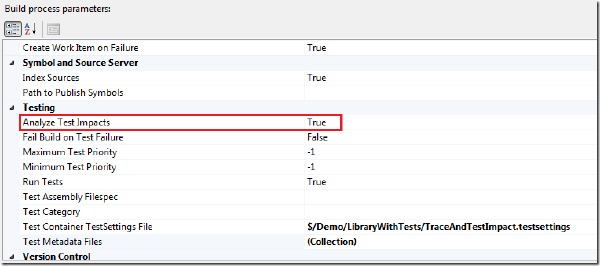
A really cool new feature in VSTS 2010 is Test Impact Analysis which let developers view what tests that are affected by the current code changes. Pieter Gheysens wrote a blog post on how to set this up in the CTP, but things have changed a bit in Beta 1 so I thought that I would show how it is done. Since it still is a bit unintuitive to enable it, it might change once again in the RTM. The reason that it is a bit unintuitive to set it up, is because you need to have the following things:
There are some changes and improvements in the area of executing unit tests in Team Build 2010. Mostly the changes make it easier to define which unit tests you want to execute as part of the build. In this post I will go through the different options that you have when it comes to running unit tests and enabling code coverage.
To configure test settings for a Team Build, you select Edit Build Definition in Team Explorer, and then go to the Build Process tab. In the Build process parameters box there is a section for the testing parameters. To change the parameters, just edit them and hit the save button. There is no need to check anything in or out to change the parameters. Only changes to the build process require you to check in the build process file (.xaml)
*Disclaimer: This blog post discusses features in the TFS 2010 Beta 1 release. Some of these features might be changed in the RTM release. *
In my last post I talked about the new major features of Team Build in TFS 2010. This time, I will go into more detail on how you work with build definitions. In TFS 2010, the whole build process is now implemented on top of Windows Workflow Foundation 4.0 (WF4). This means that everything that has to do with creating and customizing builds in TFS 2010 is now done using a workflow designer UI. This means that you no longer have to remember all the different MSBuild targets when you want to insert some custom logic in your build. On the other hand, you obviously need to understand how a default team build process is implemented, which activities does what, what WF properties and variables that exist. And eventually you might also have to learn how to implement custom workflow activites when you need more functionality than what is included in the standard team build activities.
VSTS 2010 Beta 1 is finally available. Beta 1 is a huge release a contains tons of new functionality in almost all areas of Team System. We at Osiris Data have been using Team System since the first beta, and we also help our customers how to adopt TFS in their organization. So for us VSTS 2010 is a very exciting release.
I am planning to post several blog entries about the new functionality of VSTS 2010, in particular I will focus on Team Foundation Server (TFS) and Team Build. I have been working a lot with Team Build 2005 and 2008 and have been looking forward to the 2010 release. VSTS 2008 was a minor release for TFS, so a lot of missing features and change requests haven’t been implemented until now.
On May 20th Terje and Mikael from my company (Osiris Data) will hold a seminar in Oslo, Norway where they will run through all (?) the new cool features in VSTS 2010. Expect to see demos on the new functionality for manual and UI testing, branch visualization, hierarchical work items, gated check-ins and lots of other stuff.
VSTS 2010 is a really huge release and if the rumours are true, the Beta 1 will be released in May, hopefully before the seminar :-)
When creating new team projects in TFS, the project is created from a project template, that basically is a set of XML files. Here you can define all your work item types, queries, reports, portal site and some other things. One of the things that you can’t specify here, is what checkin policies that you want to enable for that team project. At our company, we usually create a new team project for every customer so for every new customer we need to manually modify the checkin policies for that project to match our company policy.
A very common question from people is how to handle dependencies between projects/applications/team projects in TFS source control. A typical scenario is that you a common library/framework tucked away nicely somewhere in TFS source control, and now you have some applications that, in some way, needs to reference this project.
My colleague Terje has written an article on what he calls “Subsystem branching”, in which he talks about different ways to organize your source code in order to solve the above problem. Ther article can be found here: http://geekswithblogs.net/terje/archive/2008/11/02/article-on-subsystem-branching.aspx
The source code for this policy is available here : http://www.codeplex.com/TFSCCCheckinPolicy Checkin policies is a great tool in TFS for keeping your code base clean and adhering to your companhy standards and policies. The checkin policies that are included are very useful, but don’t stop there! Implementing your own custom checkin policy is pretty straight-forward and can soon pay off by stopping people from doing silly things (on purpose or not…).